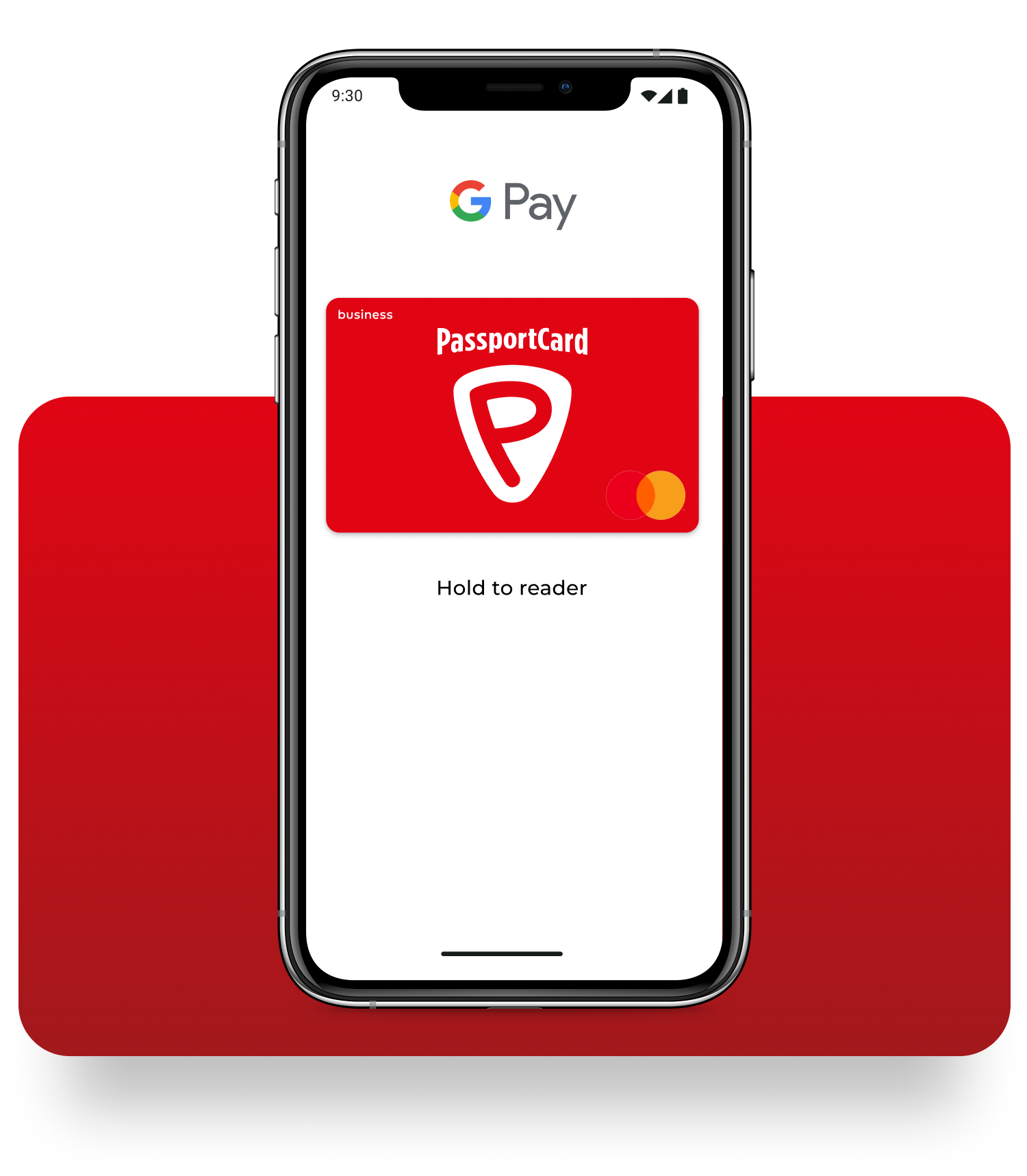
Add your PassportCard to your Google Wallet
Enjoy a simple, fast, and secure payment experience by adding your PassportCard to your Android device.

For PassportCard Mastercard holders only. Important: Only supported cards can be added.
For more information, see which payment methods are supported by Google Wallet.
In accordance with PassportCard’s policy, a one-time verification code will be sent to the mobile number registered in the company’s system.


PassportCard users using Android devices
Add your PassportCard to your Google Wallet
and enjoy a simple and secure payment experience. Just hold your Android device near the payment terminal at the store and pay contactlessly.
You can use it anywhere you see the following symbols:

How do I add the card to my digital wallet?
Just follow a few simple steps or watch our short how-to video.
- Open the Google Wallet app, tap the "+" button at the bottom of the screen, and then select the “Payment card” option.
- To add the card, scan it using your camera or tap “Enter details manually.” Then, at the bottom of the screen, tap “Save and continue."
- In the next step, accept the Terms of Use. Once the card has been added to your device, you'll need to verify it by receiving a code via SMS or email.
Everything You Need to Know About Adding Your Card
Digital wallet support is currently available for PassportCard Mastercard cards only
No worries – we’re here to help!
You can contact us by phone from Israel at 073-201-5556.
If you’re abroad, you can reach us via a free international call. To start a free call from abroad, click here
Yes, the physical PassportCard is required in order to add it to your digital wallet.
Yes, absolutely. You can add your PassportCard to up to three different digital wallets.
Yes, definitely! Your physical PassportCard can be used to withdraw cash from ATMs. In addition, not all countries around the world support contactless payment technology.
No, adding your PassportCard to the digital wallet is completely free of charge.
You’ll need to open your digital wallet app, look for an option like “Add Card” or “Cards & Payments,” and follow the on-screen instructions.
This usually includes scanning your card using the phone’s camera or manually entering the card details.
To add your PassportCard to a digital wallet, you’ll need to have the physical card with you.
The required details are: The card number, The 3-digit security code on the back of the card, Your first name, which you’ll be asked to enter during the process
Devices that support digital wallets must have NFC (Near Field Communication) technology and an up-to-date operating system:
-
iPhone: iPhone 6 or newer, running iOS 11.0 or later
-
Android: Devices running Android 7.0 or later with NFC support. These typically support Google Wallet or Samsung Wallet
For the most accurate information, it’s recommended to check the official website of your device’s manufacturer (Apple or Google).
Yes. After adding your PassportCard to the digital wallet on your device, you’ll need to complete a verification step.
A one-time security code will be sent – via SMS or email, according to your choice – to the contact details registered in our system.
In this case, you should first contact your private credit card company to block your personal card.
At the same time, please contact the PassportCard Pay support center to find an alternative solution for your PassportCard and the PassportCard Pay service.
We’re available 24/7 through the following channels:
-
WhatsApp support for customers abroad: +972-50-670-8544
-
Toll-free international call – click here
-
Phone support from Israel: 073-201-5556
Yes, you can use the card for online purchases during your trip.
Yes, absolutely. You can view your transaction history in the digital wallet, just like with any other credit card.
You can remove your PassportCard from the digital wallet just like any other card.
Please note that the card remains visible in your digital wallet even after you return to Israel. However, it can only be used while abroad, and only when you have an active travel insurance policy.